
Edit your items and photos
There’s more to every find. Return to a saved item in the Tocuro iOS app to add details and notes, record measurements and weight, and organize its photos.
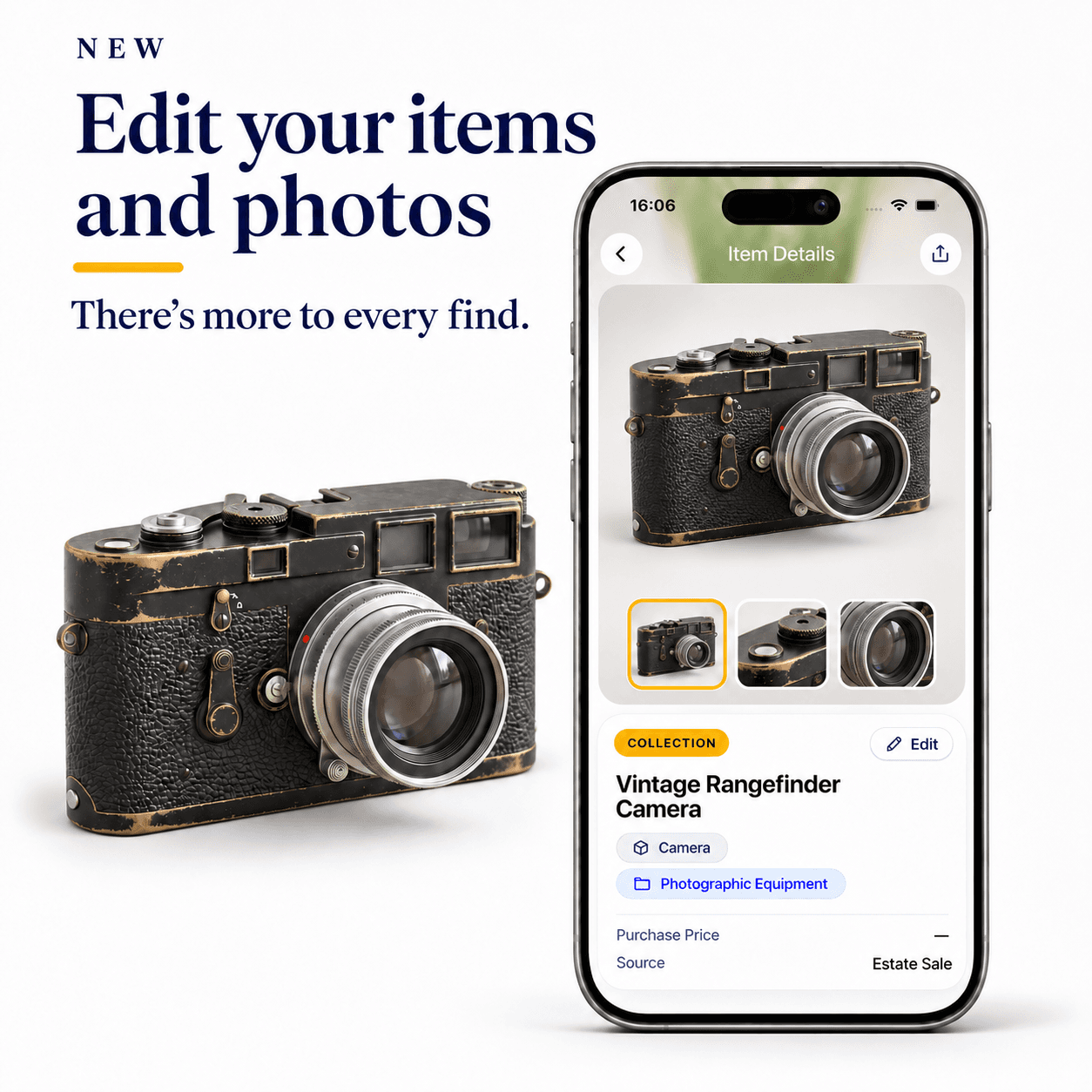
Some of a find’s best details reveal themselves over time. A mark on the base. A story from the person who owned it. A photograph that captures something you didn’t notice at first.
With Edit Item and Edit Photos in the Tocuro iOS app, you can keep those discoveries alongside the item in your collection or watchlist.
Add to the story
Use Edit Item to add or edit details such as the item’s name, maker, materials and condition, along with what’s included, item history and notes. Add a detail you’ve learned, change it later, or delete text you no longer want to keep by clearing the field and saving. Category uses a selection menu; returning it to the original value restores Tocuro’s original category.
Keep the story of where a piece came from in Item history, and use Private notes for your own reminders.
Record dimensions and weight
Add the measurements you’ve taken: Height, Width and Depth in inches or centimeters, plus Weight in pounds or kilograms. Choose the units for the values you enter and save those practical details with the rest of the item’s story.
Show more of your find
Use Edit Photos to take another photo with the camera or add one from your photo library. Hold and drag to reorder photos, or use a photo’s menu to move it earlier or later. Choose a cover to put that photo first; reordering also makes the first visible photo the cover.
Label photos Front, Back, Maker’s Mark, Flaw, Detail or Other to keep track of what each view shows. You can remove photos you’ve added. Original scan photos can be hidden and shown again, and at least one photo must stay visible.
Show the item’s size. Add a photo with a ruler, tape measure, or wine bottle beside it. This gives your gallery a visual size reference alongside the dimensions and weight you enter yourself.
Try it with one saved item
- •In the Tocuro iOS app, open an active item in your Collection or Watchlist.
- •Open Manage Item, then choose Edit Item or Edit Photos.
- •Add a detail or photo, then save your changes.
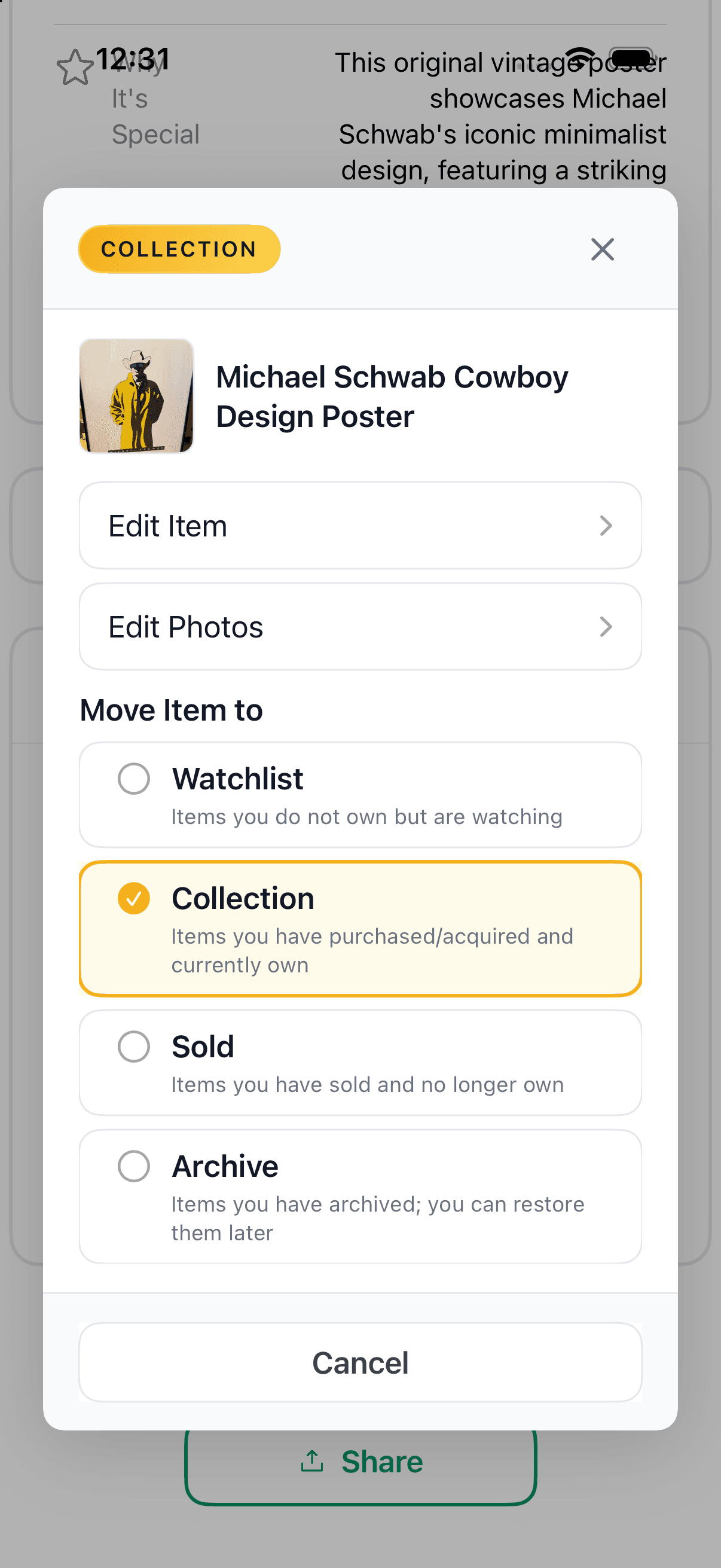
Actual Simulator capture of Manage Item for a poster, showing where to open the two editors. Campaign hero images are illustrations.
These editors are for eligible saved items in the native iOS app. If the options aren’t shown, check that the item is saved and active and that your app is up to date.
A collection that grows with you
Keep exploring. Add what you discover. There’s more to every find.